
Cosmo was removed from the Tools menu by default in newer versions of Looks on account its usage prevented CUDA playback.
To retain backwards compatibility with older versions of Looks presets that might've used it, it is still technically built in and can be accessed by following the steps below:
- In Looks, go to Looks > People and select Classic Skin Smoother
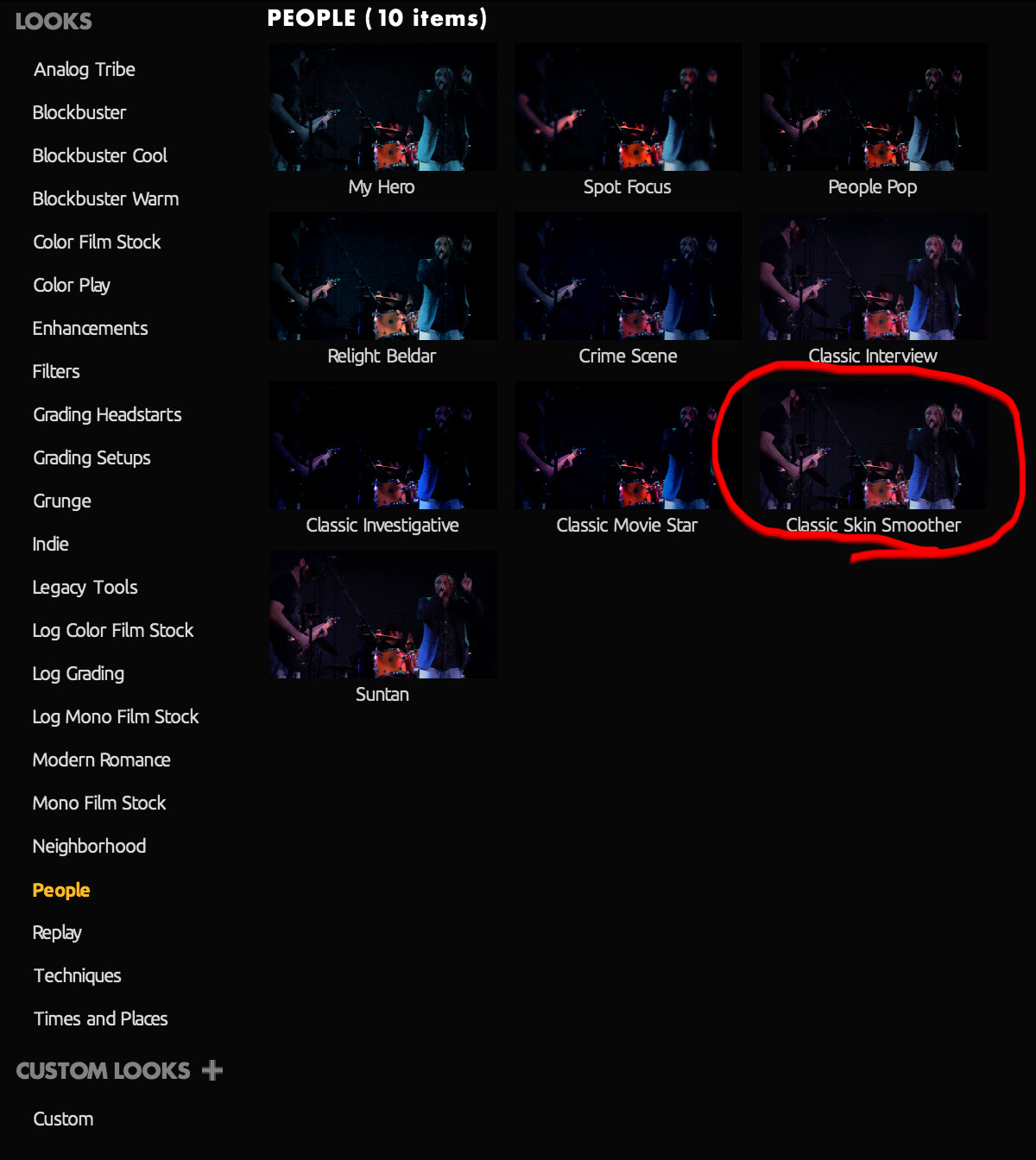
- Delete Colorista II and Pop from the tool chain.
- Click the Save Custom Look button in the lower left, then save your preset.

You will now have Cosmo saved as a custom look.
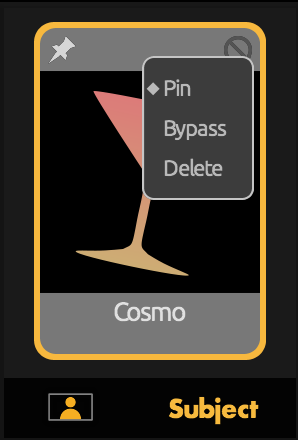
To apply it, select it from the custom looks drawer. To keep it in use when applying another Look preset, right-click on Cosmo and select Pin.
Comments
0 comments
Article is closed for comments.